

Release of May 4th, 2026
✨ New Features
Proactive Notifications in Flows
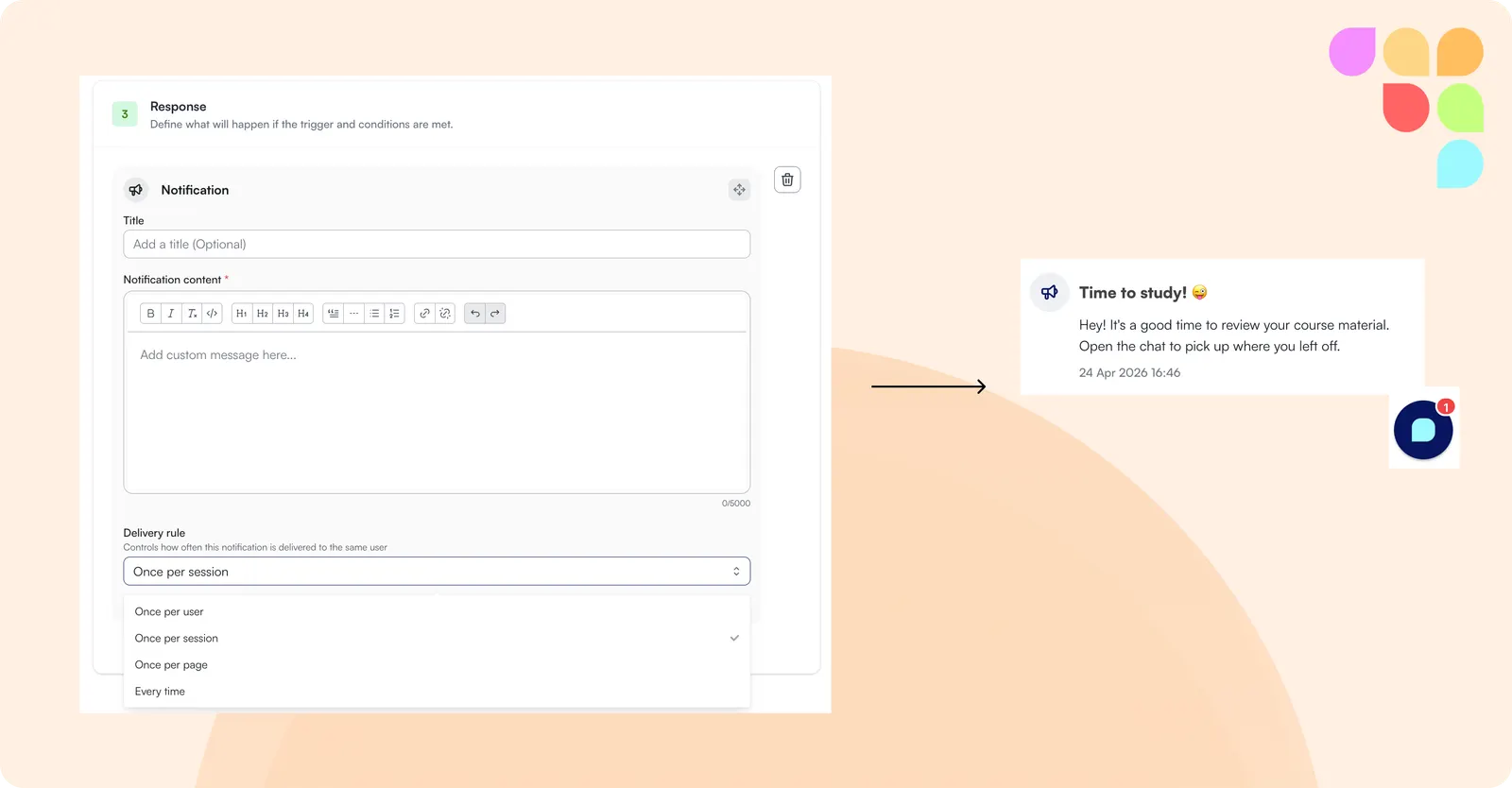
Your assistant can now reach out to users proactively, without waiting for them to start a conversation. You can configure notifications to appear when a user loads a page, spends a set amount of time on it, or opens the chat window. Each notification lands in the user's inbox and can be set to allow an immediate reply, which the assistant will treat as the start of a conversation. You control how often the same notification is shown — once per user, once per session, once per page, or every time the condition is met.
📄 How do proactive notifications work in Flows?
Smarter Flow Targeting
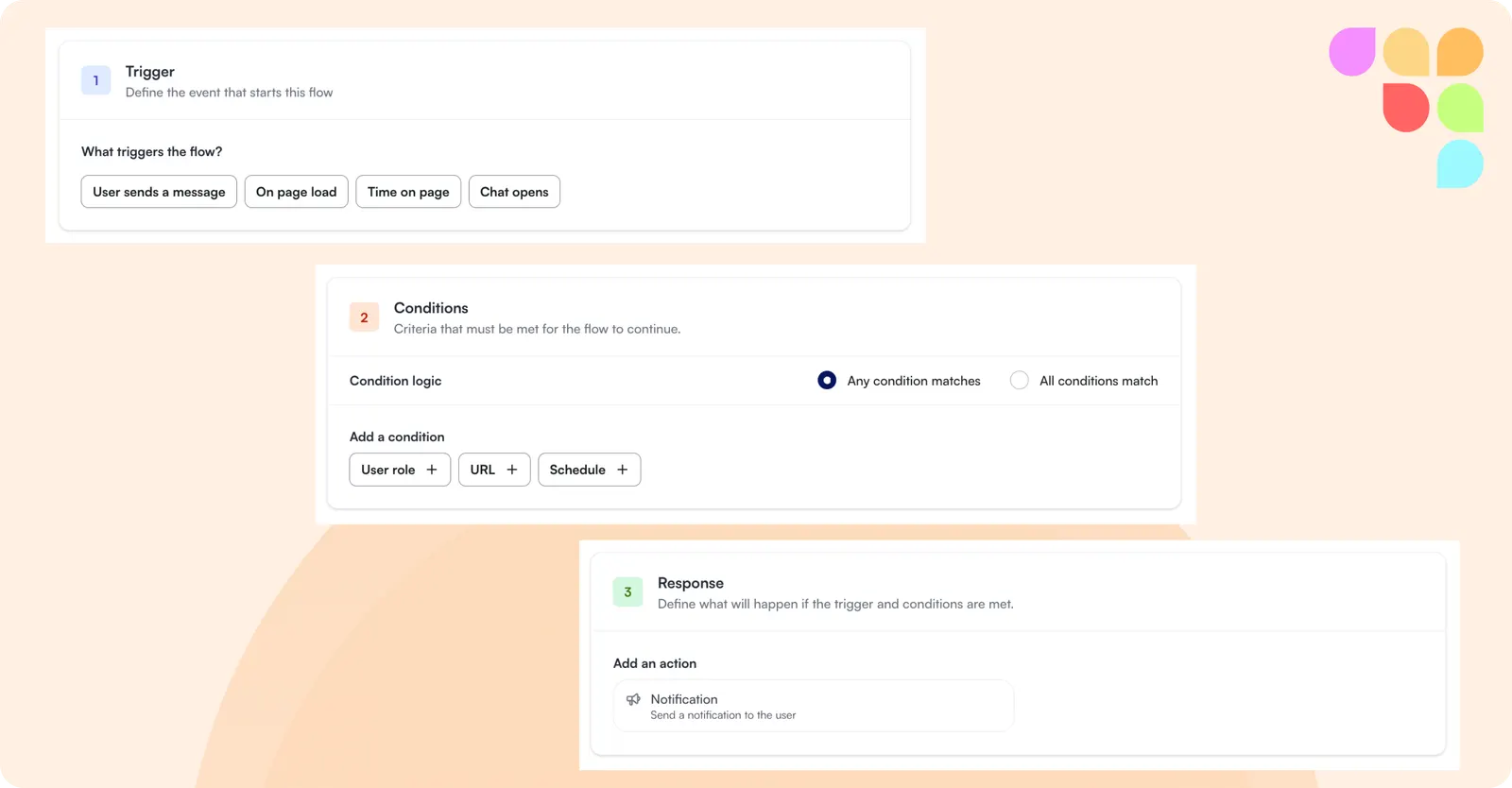
The Flows editor has been redesigned with clearer controls for defining who sees a flow and where. You can now limit a flow to specific user roles (such as students or instructors), restrict it to particular pages or sections of your LMS, or schedule it to only be active during a defined date range — for example, during enrollment week or exam season.
Unified Chat & Feedback Launch on Grading Pages
When both the chat assistant and the feedback tool are enabled, they now share a single, consolidated entry point on the LMS grading interface, reducing clutter for instructors. Assistants can also be configured as feedback-only, removing the chat launcher entirely for a cleaner grading experience.
🛠 Improvements
Simplified AI Reasoning
Admins can now enable a setting that shows a short, plain-language summary of how the assistant reached its answer, rather than the full step-by-step reasoning process. Full reasoning logs remain accessible to admins for auditing purposes. You can find this setting under General > Configuration > Simplified Thinking.
Separate Chat Button & Bubble Color Settings
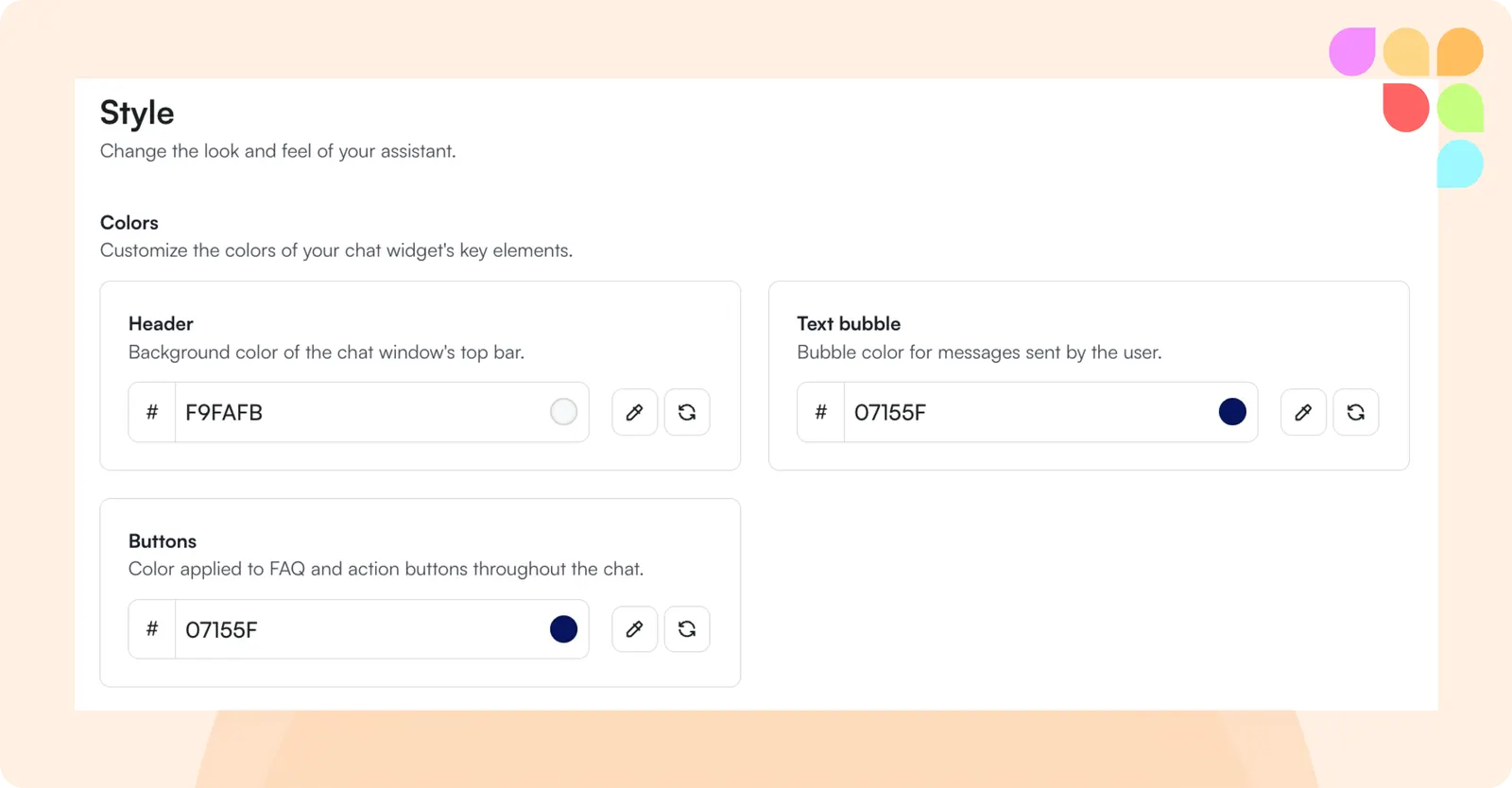
The Style tab now offers two independent color controls — one for the chat button and one for the text bubble — replacing the previous single brand color setting. This gives your institution more precise control over how the assistant fits your visual identity.
CSAT Data in Exports
Satisfaction ratings collected through the assistant are now included in Inbox and Insights data exports, making it straightforward to incorporate this data into your institution's existing reporting workflows.
Collapse Button for Adjust Feedback
Instructors on smaller screen resolutions can now collapse the Adjust Feedback section within the feedback tool, freeing up space on the grading interface when it's not needed.
Brightspace: Automatic Language Detection
For Brightspace institutions, the chat interface will now automatically display in the language set in a user's Brightspace profile, removing the need for manual configuration and better supporting multilingual users.
Accessibility Improvements
This release includes a significant set of updates toward full WCAG 2.2 A and AA compliance, covering areas such as keyboard navigation, color contrast, text spacing, focus order, and screen reader support.