Release of August 24th, 2026
✨ New Features
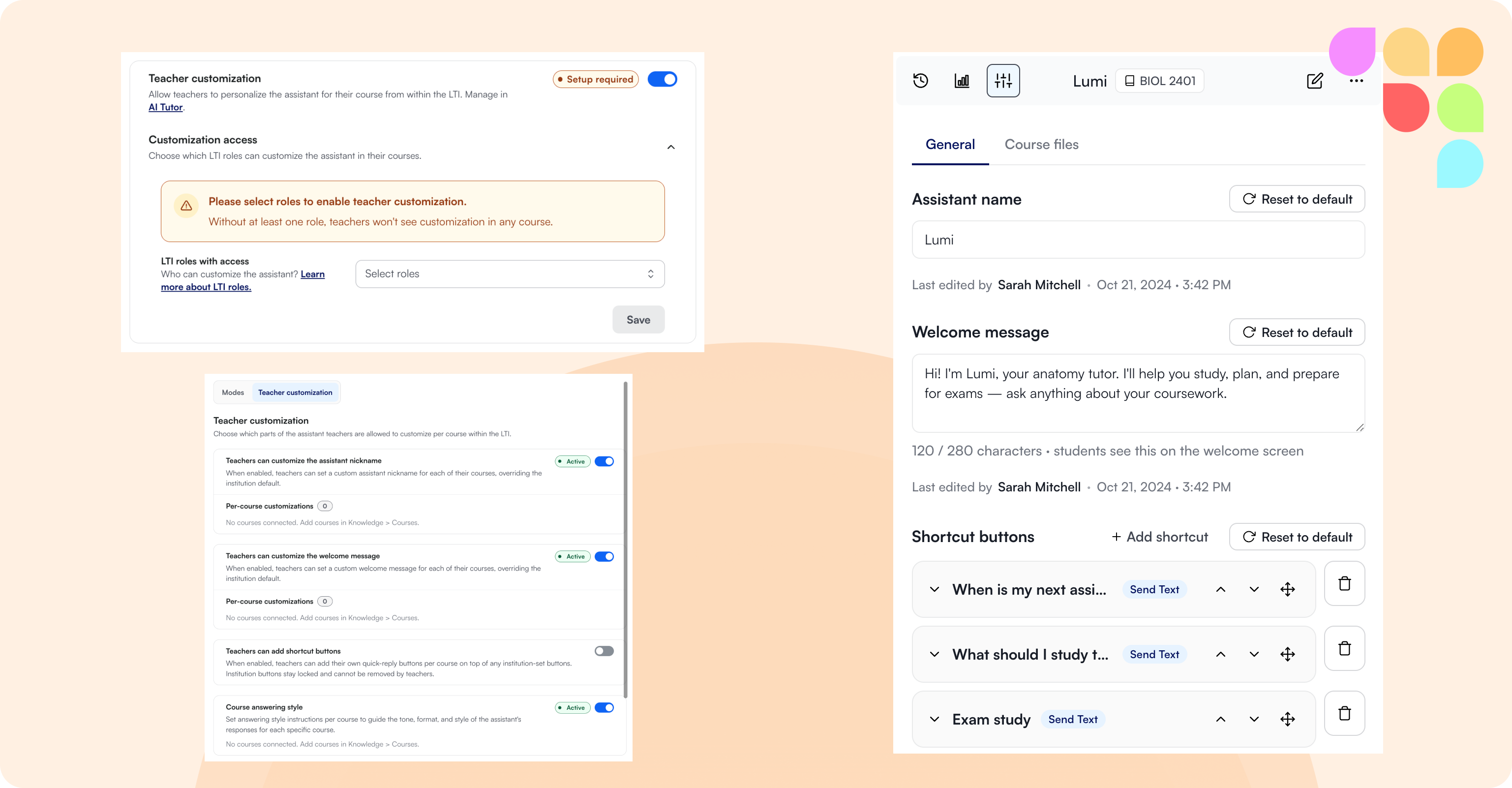
Teacher Customization in LTI
Instructors can now personalize their course assistant from within their course — setting a custom name, up to five shortcut buttons, course-specific files, a custom welcome message, an answering style, and their own instructor info (name, email, office hours, bio). Admins can enable this feature under AI Tutor tab and must also choose which LTI roles get access under the Publish tab. Institution-wide settings and disclaimers always take priority.
📄 How does Teacher Customization work in the LearnWise AI Tutor?
Moodle Course Assistant as a Block
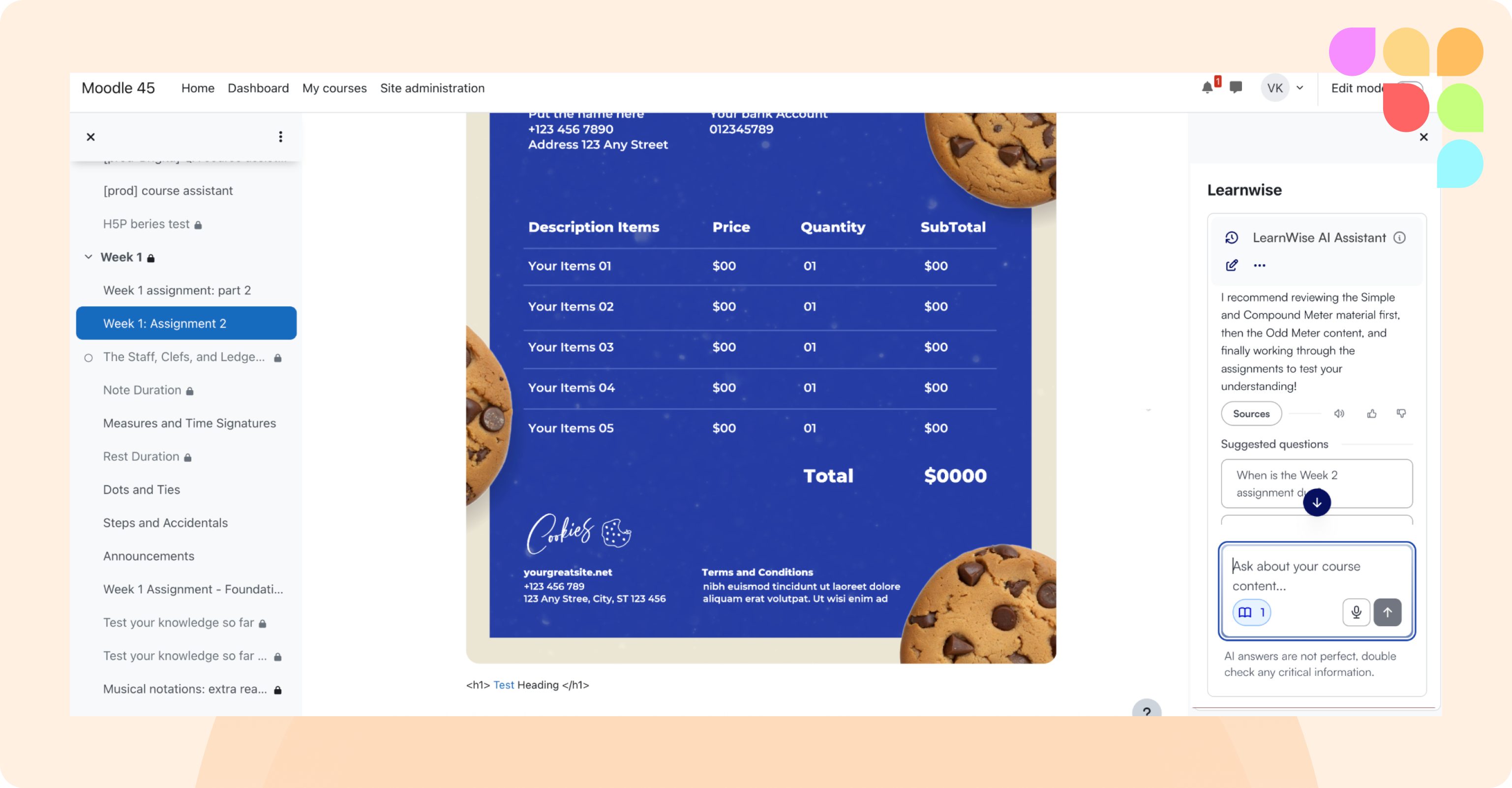
The Course Assistant can now be added to a Moodle course page as a persistent side panel ("block"), in addition to a floating chat button. Professors can add it directly from Moodle's own "add block" menu, with no admin setup required. Course content and the assistant can now stay open side by side.
📄 How do I publish an assistant into Moodle LMS?
🛠 Improvements
File Uploads in Chat
Uploaded files in chat can now power Study Mode and H5P activities (quizzes, flashcards, etc.). We've also added a dedicated attachments section in the admin Inbox, so shared files are easy to find without scrolling the full conversation thread. Downloaded files are now saved as .txt, which helps keep your institution more secure. File uploads in chat is disabled by default – please reach out to your CX representative if you'd like it enabled for your organization.
Option to Fully Hide AI Reasoning Steps
In addition to full reasoning and abbreviated reasoning, admins now have a third option: hide completely, so end users only see the final answer. Admins can still see full reasoning in the Inbox regardless of what end users see. This feature is available under Admin → General.
Kaltura Application Token Authentication
Institutions connecting Kaltura video can now authenticate using a scoped Application Token, set up entirely from their own Kaltura console, instead of handing over full admin credentials. This is an additional option alongside the existing setup.
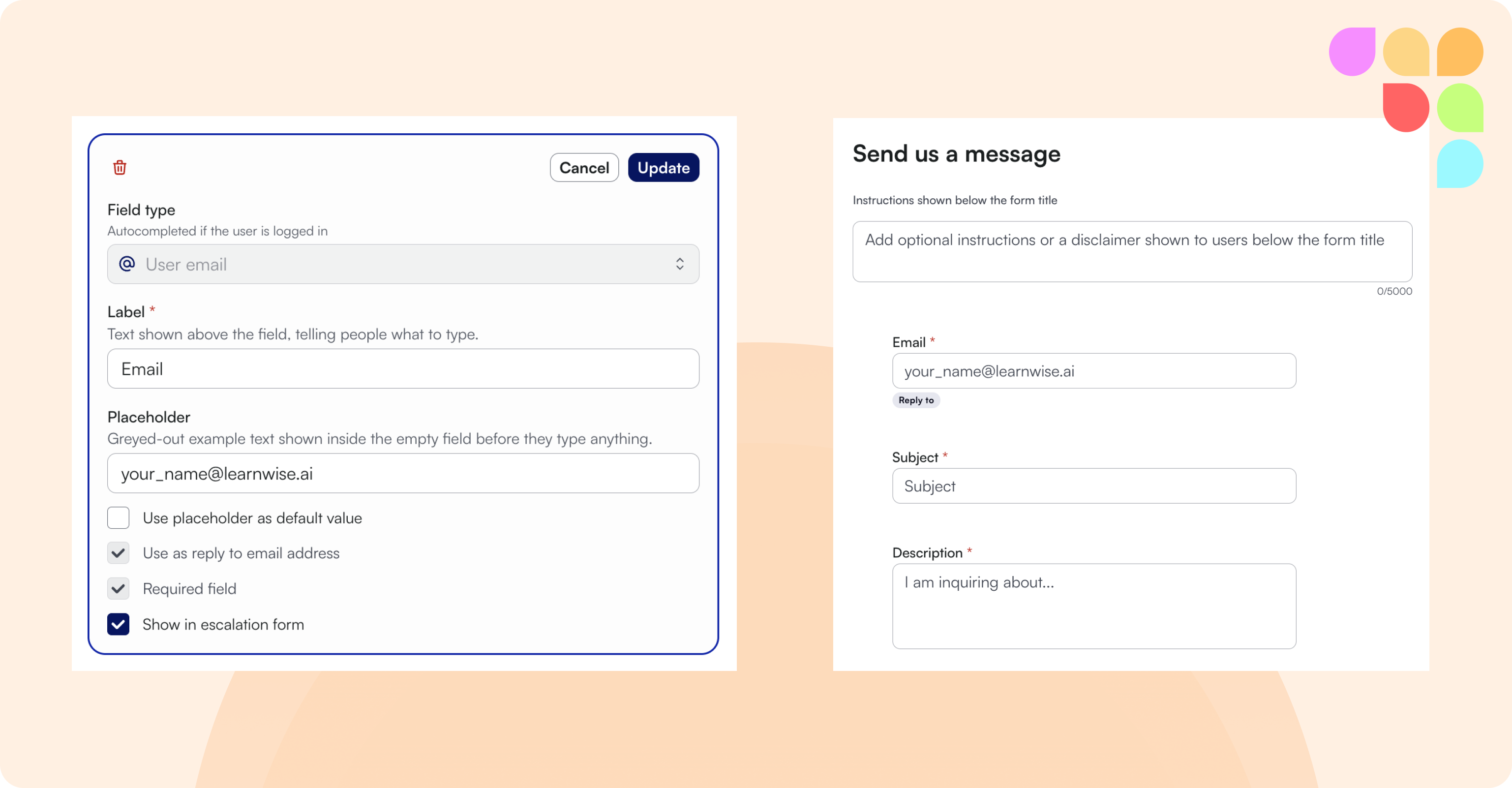
Clearer Escalation Form Field Editing
It's now easier to find where to rename a field in your escalation form settings.
Escalation URL Now Captured
When a conversation is escalated, the escalation record now captures the exact page the learner was on at the time, shown in the Escalation section of the conversation panel. Previously, only the page where the chat originally launched was stored, so if a learner navigated elsewhere before escalating, that context could be lost or point to the wrong location.
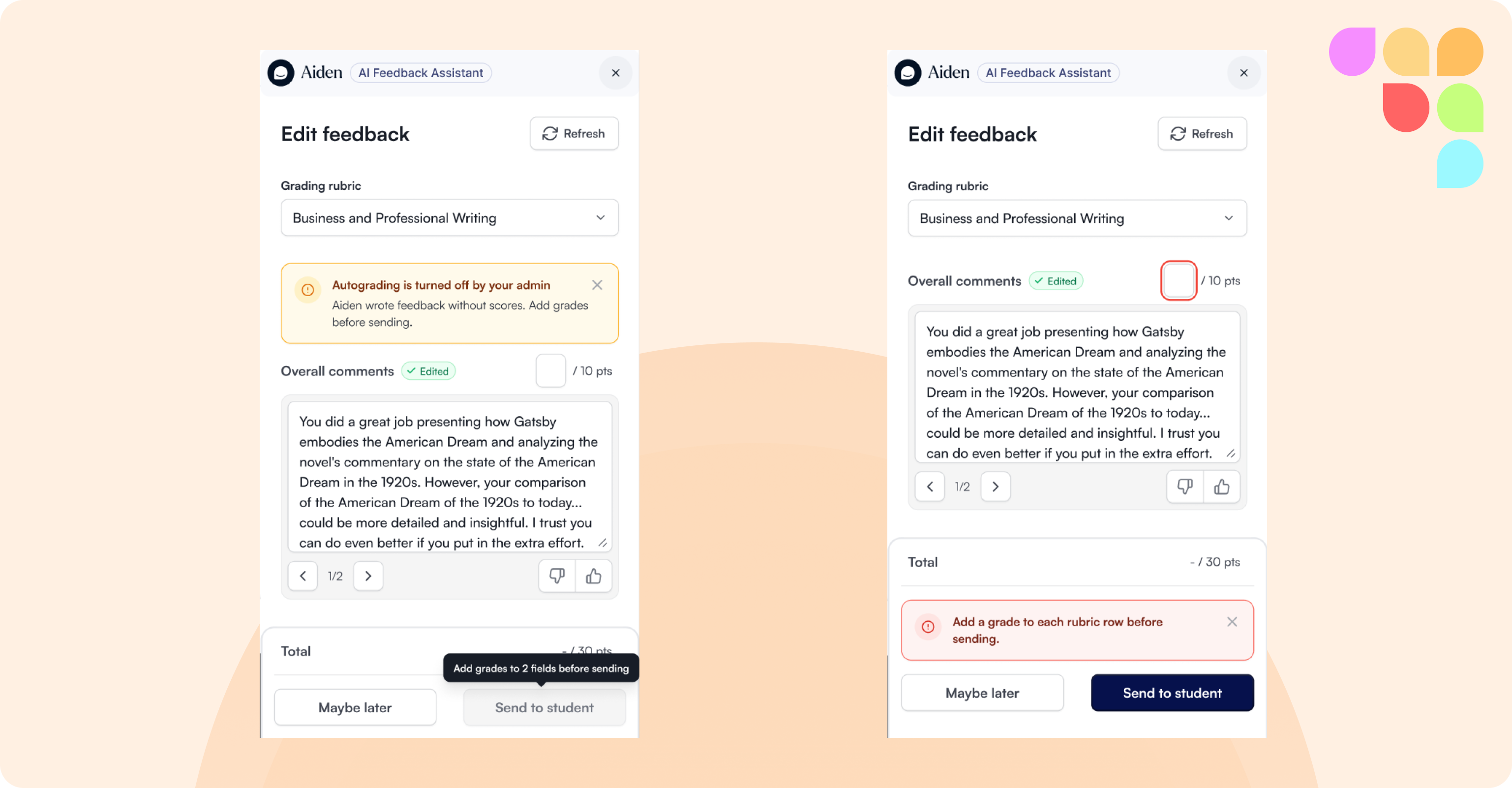
Clearer Status in the Feedback Tool (Teacher in the Loop) AI Grade
When "Suggest points & grades" is turned off in a Feedback assistant, instructors now get a clear signal that AI-suggested grades aren't part of the feedback. A notice explains that grade suggestions are off, and feedback can't be sent to a student until each numeric grade has been filled in manually.
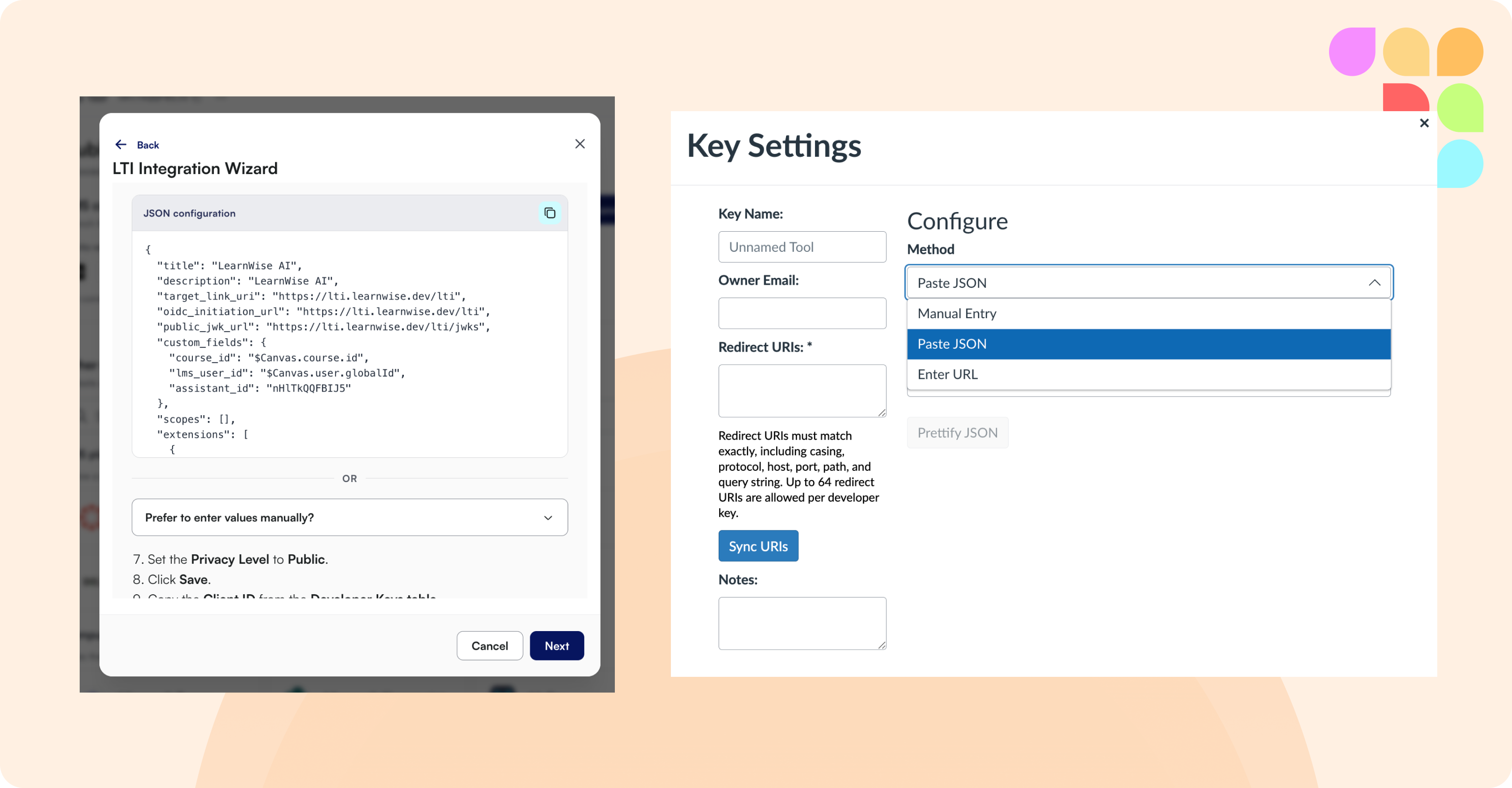
Simpler Canvas LTI Setup
Canvas Admins can now copy one JSON configuration block instead of entering each setup value by hand. Entering values manually is still available if preferred.
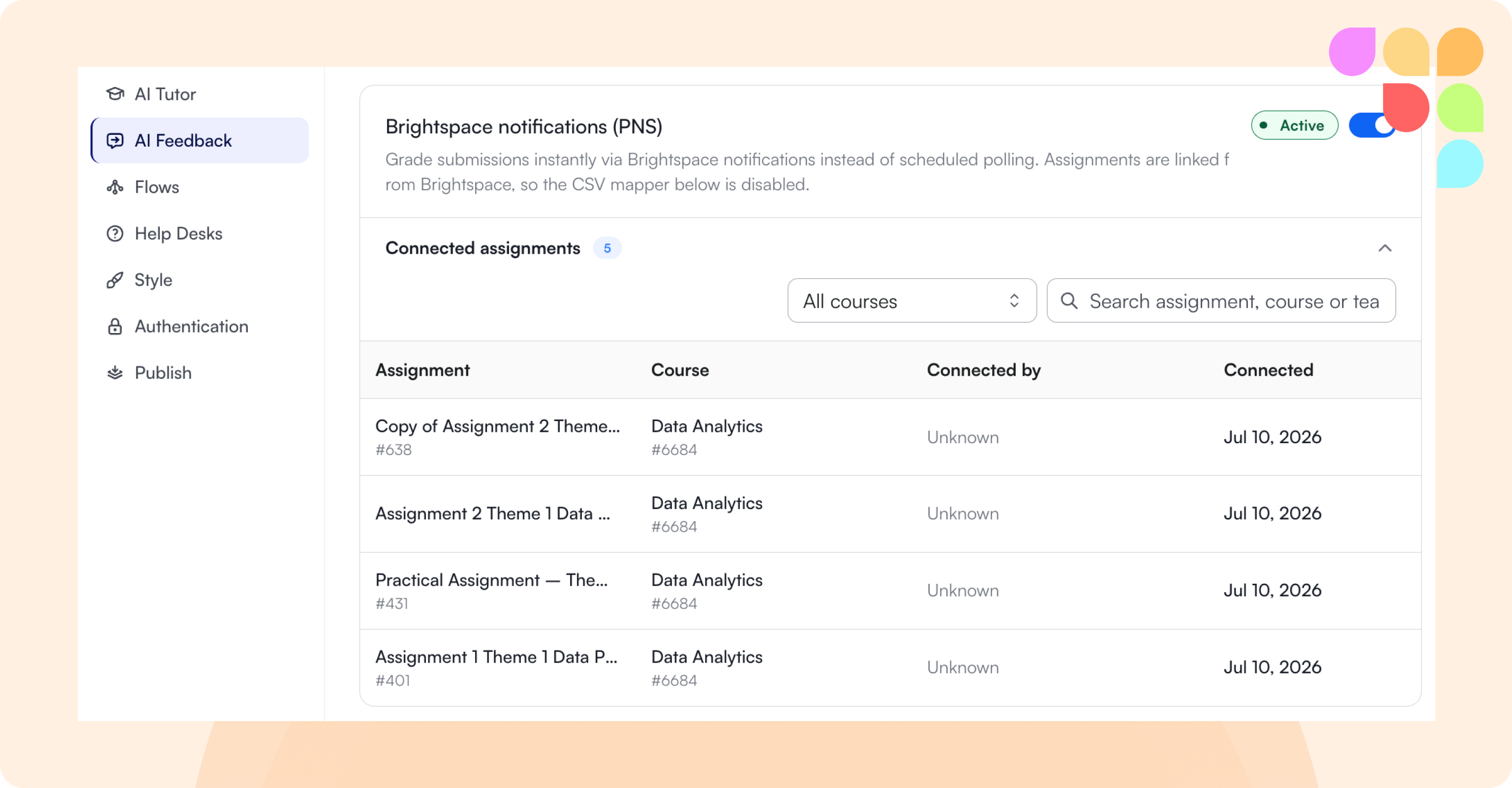
Connected Assignments Table for PNS
Admins can now see every assignment across their LMS that's connected to PNS, with the ability to search and filter by course or teacher.