Release of November 2nd, 2026
✨ New Features
AI Help for Website Import Rules
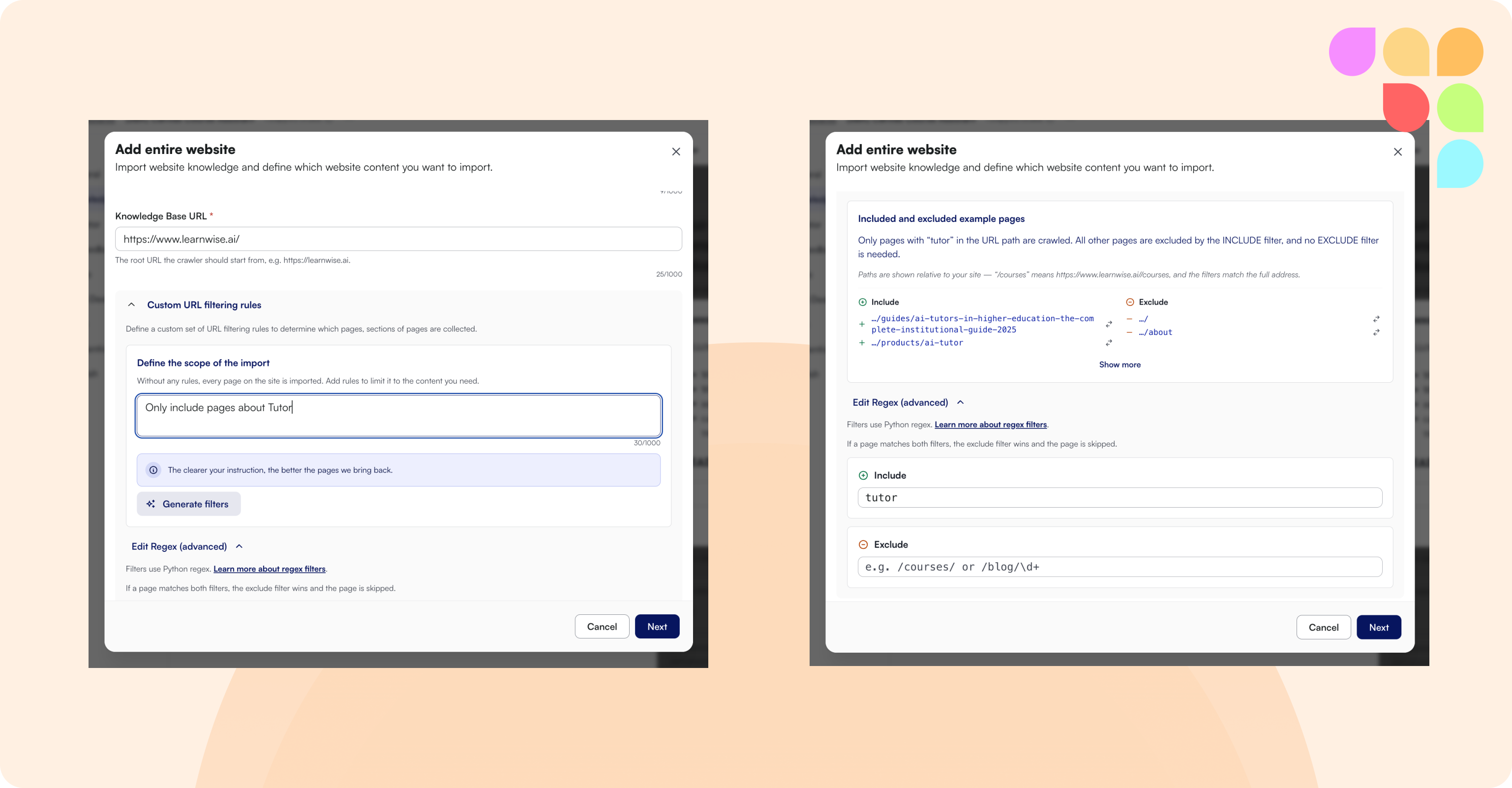
Admins no longer need to write URL patterns by hand when adding a website as knowledge. Describe in your own words which pages you want (for example “only the admissions section”), and LearnWise writes the include and exclude rules for you. Beside the rules you see two lists, pages that would be imported and pages that would be skipped, so you only need to check that the lists look right. You can refine the rules with a further instruction, mark individual pages as in or out, or edit the rules by hand at any time. The card always says whether its example pages come from your last import, the site’s sitemap, or are AI-generated examples.
Note: Generating a new set of rules with this helper overwrites any existing include and exclude rules for that website.
This feature is disabled by default — reach out to your CX representative if you'd like it enabled for your organization.
Approvals for AI Ops Assistant Actions
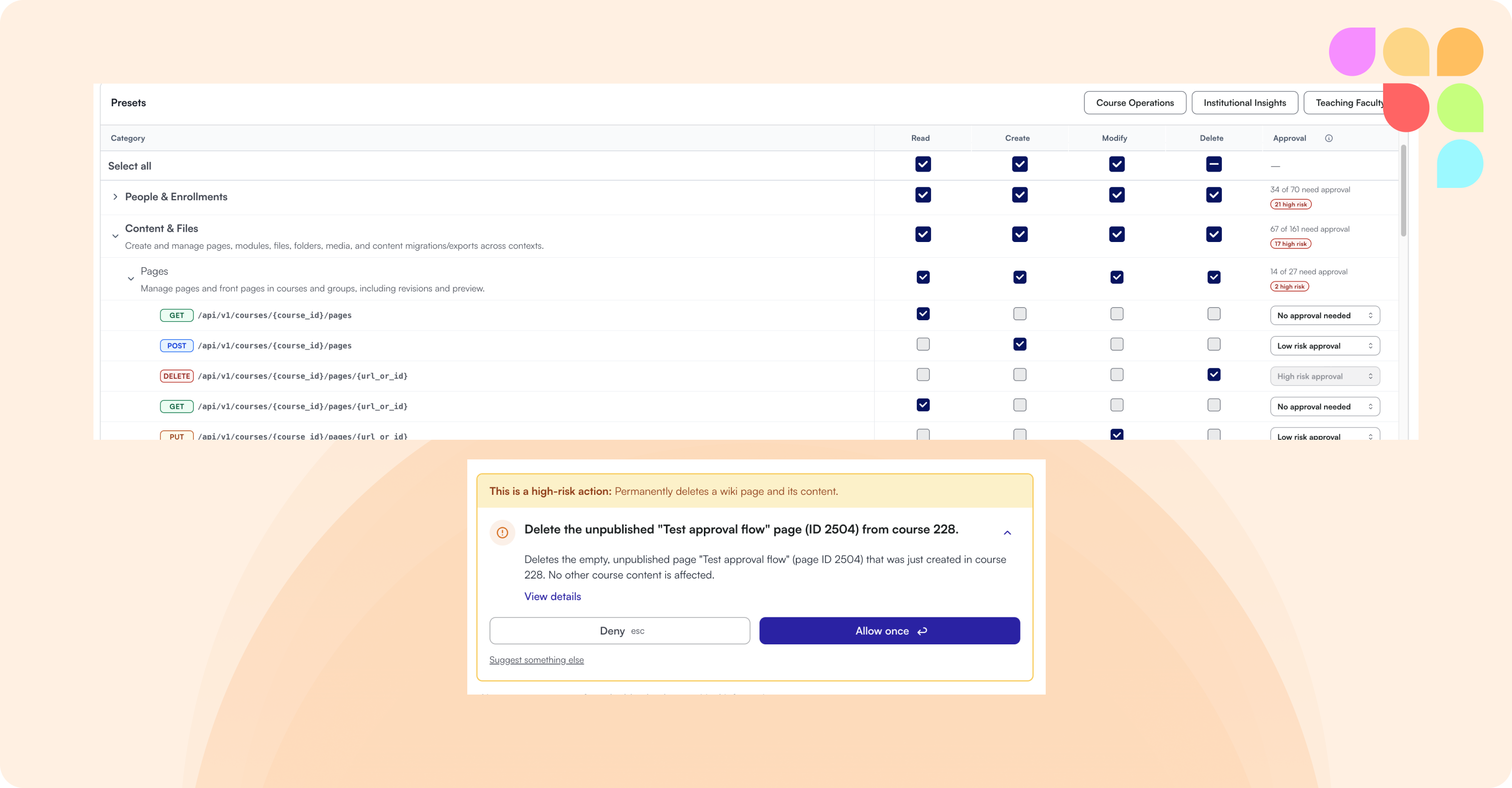
Admins can now set a higher approval level for any AI Ops action, under Knowledge → Courses → your LMS integration → LMS Capabilities. When an action is set to high risk, users see a new high-risk approval card in the chat. It explains why the action is risky and asks them to review the details before they can allow it. Admins can also require approval for actions that only read data. Levels can be raised but never set lower than the default, so existing setups don’t change.
Data Retention Periods
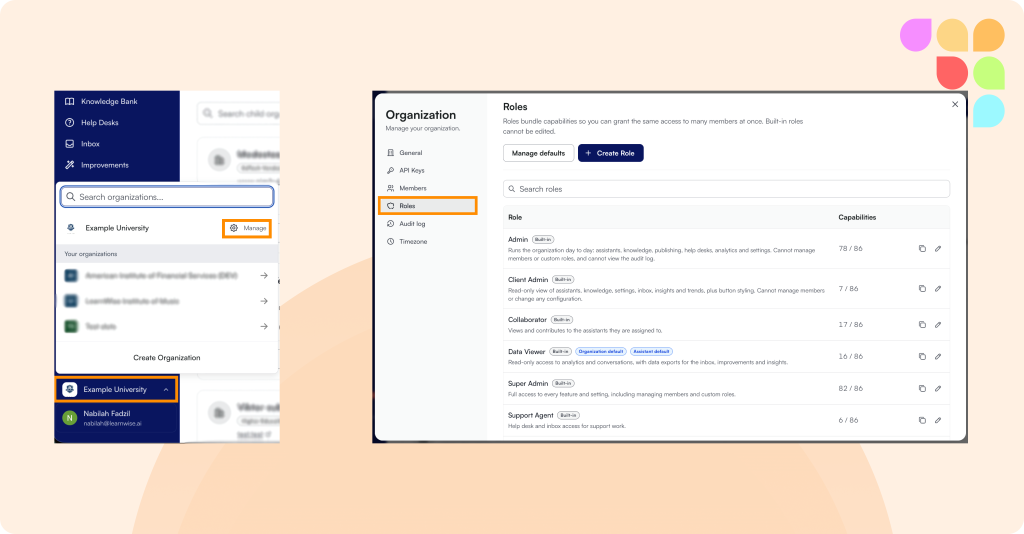
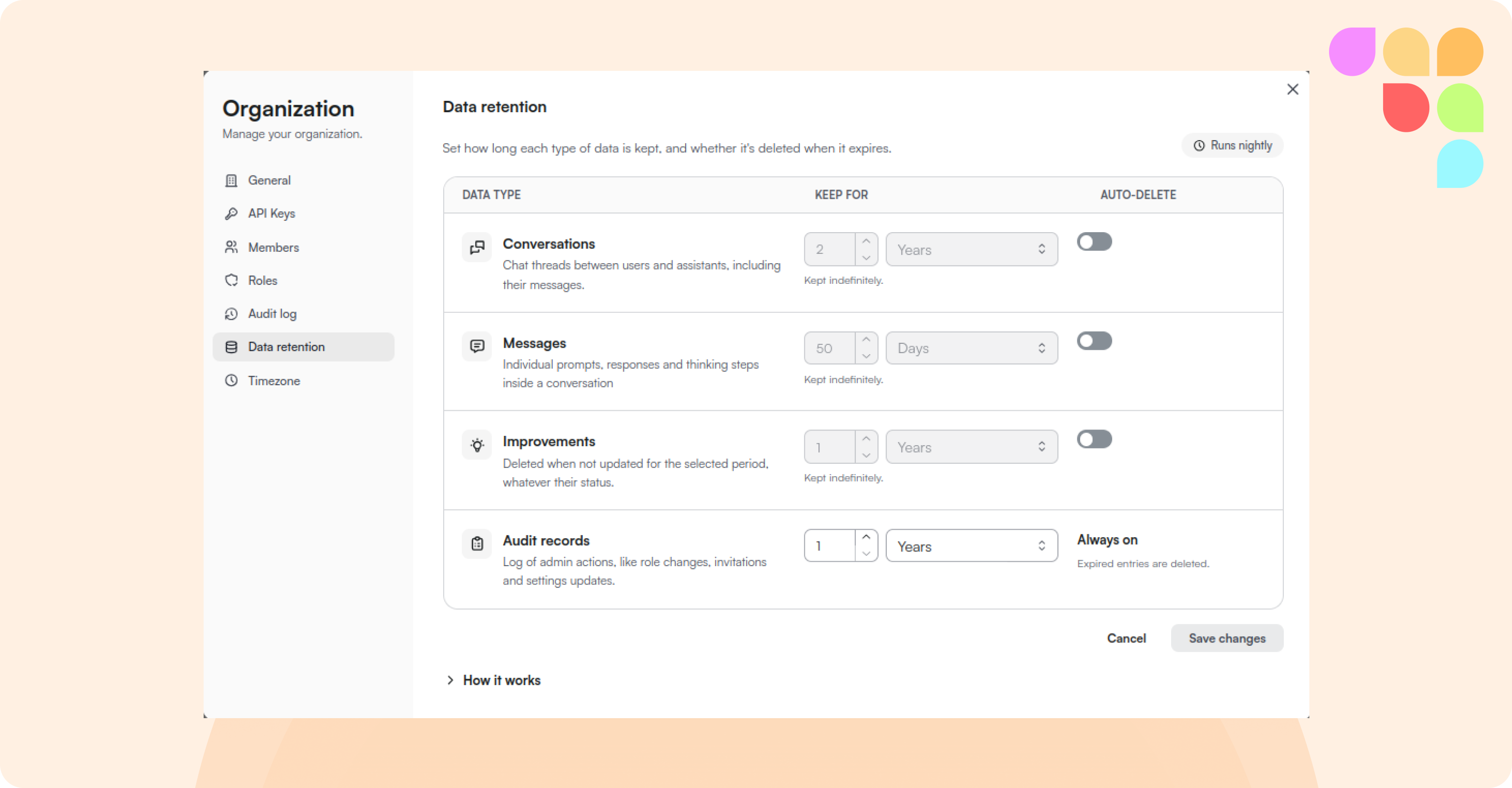
Organizations can now decide how long conversation data is kept. A new Data retention tab in the organization settings, next to Audit log and Roles, lets you set a retention period of 30 days or more, for all assistants or only selected ones. When conversations pass that period, they are removed together with their messages, linked improvements and uploaded files, and each removal is recorded.
📄 How do I set data retention periods for my organization?
Data Processing Consent Screen
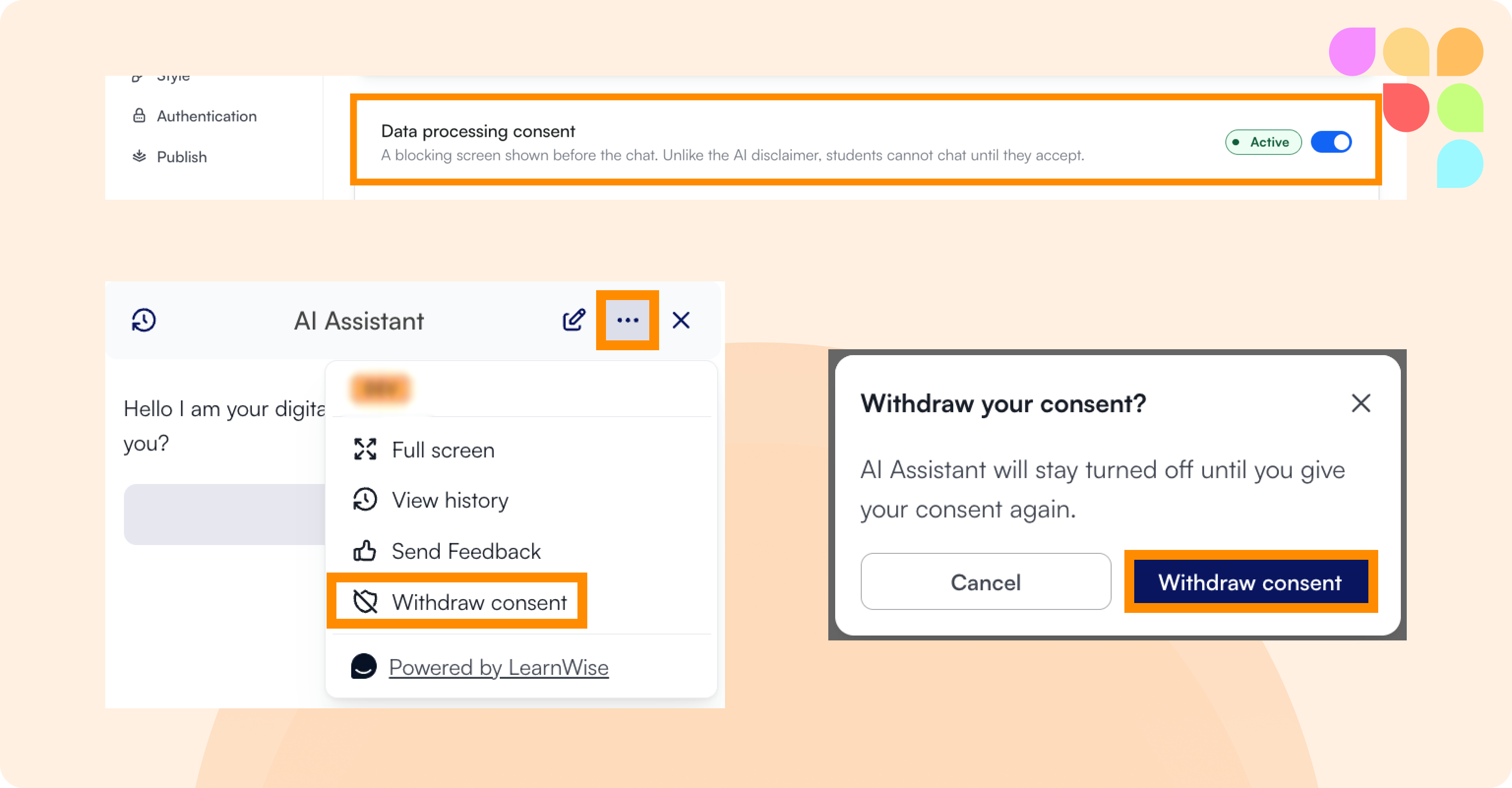
Institutions that need active student consent before the assistant processes their data can now turn on a consent screen for an assistant, under Assistant → General, under the Configuration section. When it’s on, students must accept before they can start chatting, and every acceptance is recorded. You can write your own consent message (including a link to your privacy policy) or use the default text. Signed-in students are asked again after one year, or whenever you change the consent text, and they can withdraw consent from the chat menu. The screen works in the standalone chat, the embedded widget, LMS launches and Microsoft Teams.
📄 How do I require learners to accept a data processing consent screen?
Anonymization per Assistant, with Identity Requests
Conversation anonymization can now be turned on for individual assistants, not just for the whole organization. When an assistant is anonymized, its conversations are anonymized for everyone in the Inbox, exports, Insights and the Teacher Dashboard, while other assistants stay identifiable. For cases like safeguarding or a learner complaint, a user can request the identity behind specific conversations, giving a reason. An admin approves or rejects the request, approved access is limited to the requester and those conversations, and every step is recorded in the audit log.
Nextcloud as a Knowledge Source
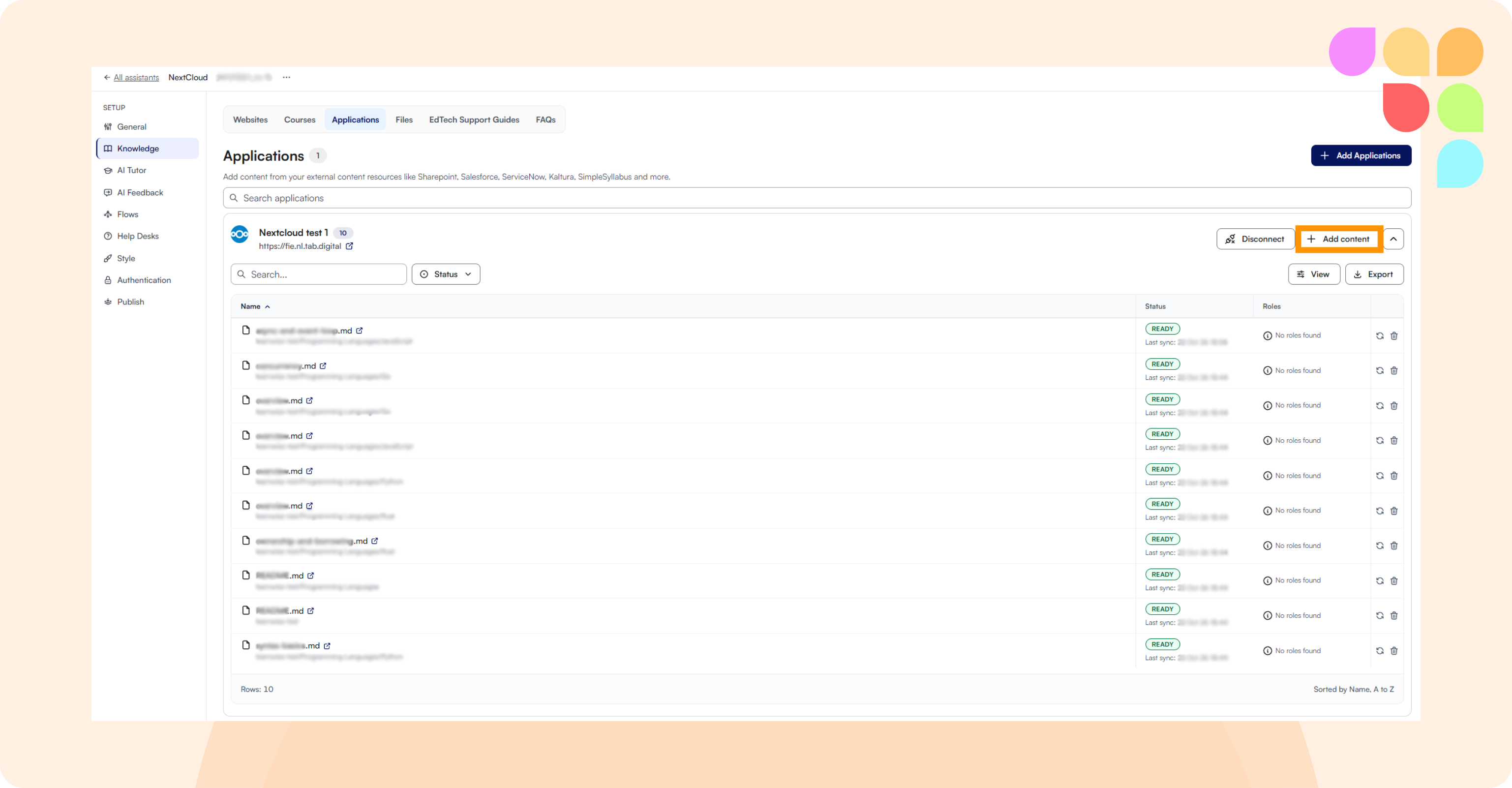
Nextcloud can now be connected as a knowledge source. Files stay in Nextcloud as the original, and when a file changes there, LearnWise picks up the latest version automatically, so admins don’t need to re-upload documents after every edit.
📄 How do I connect Nextcloud as a knowledge source?
🛠 Improvements
Danish Interface Language
Danish is now available as an interface language in the chat, the admin panel and AI Feedback.
Help Desk Escalation Updates
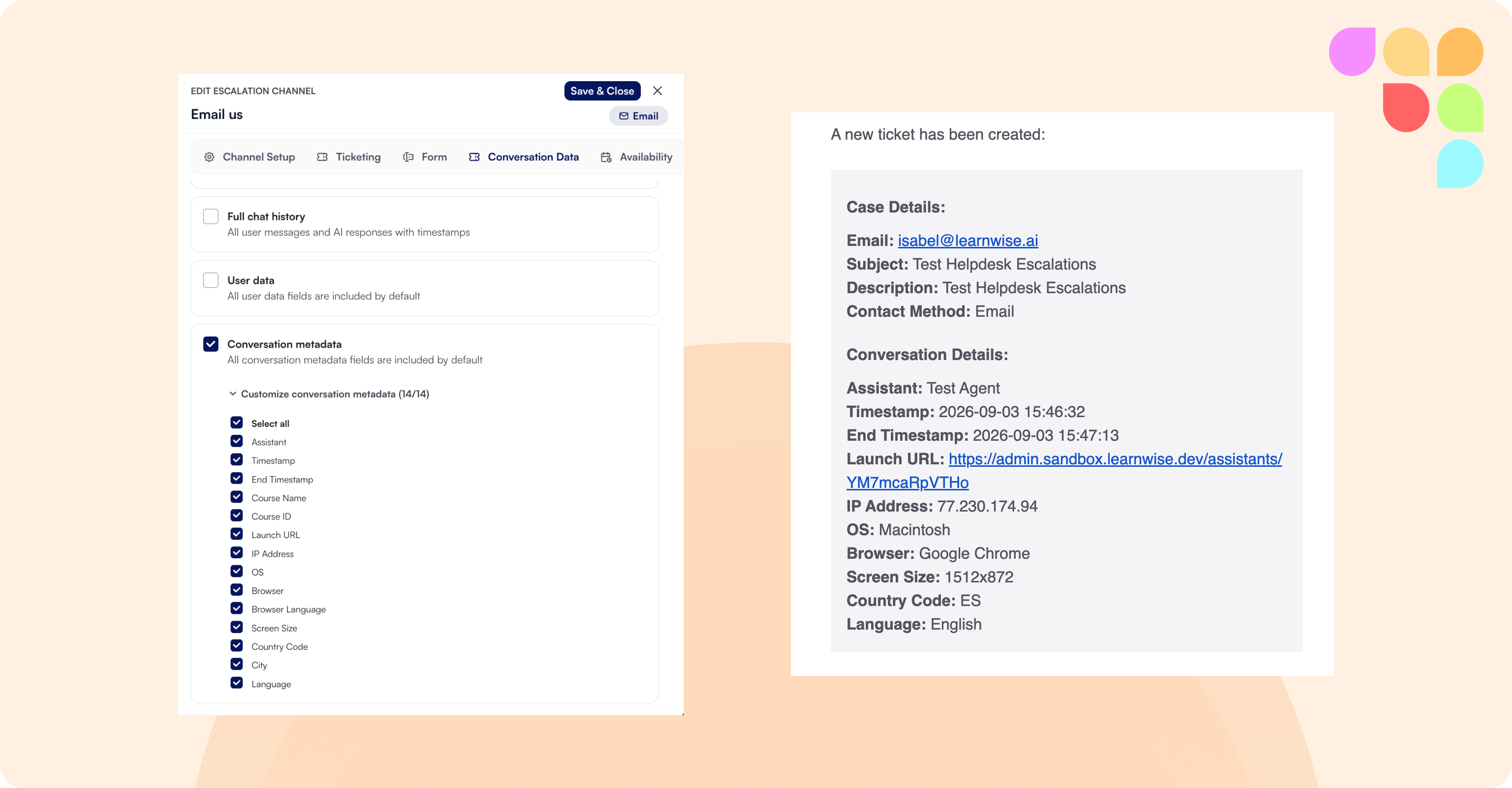
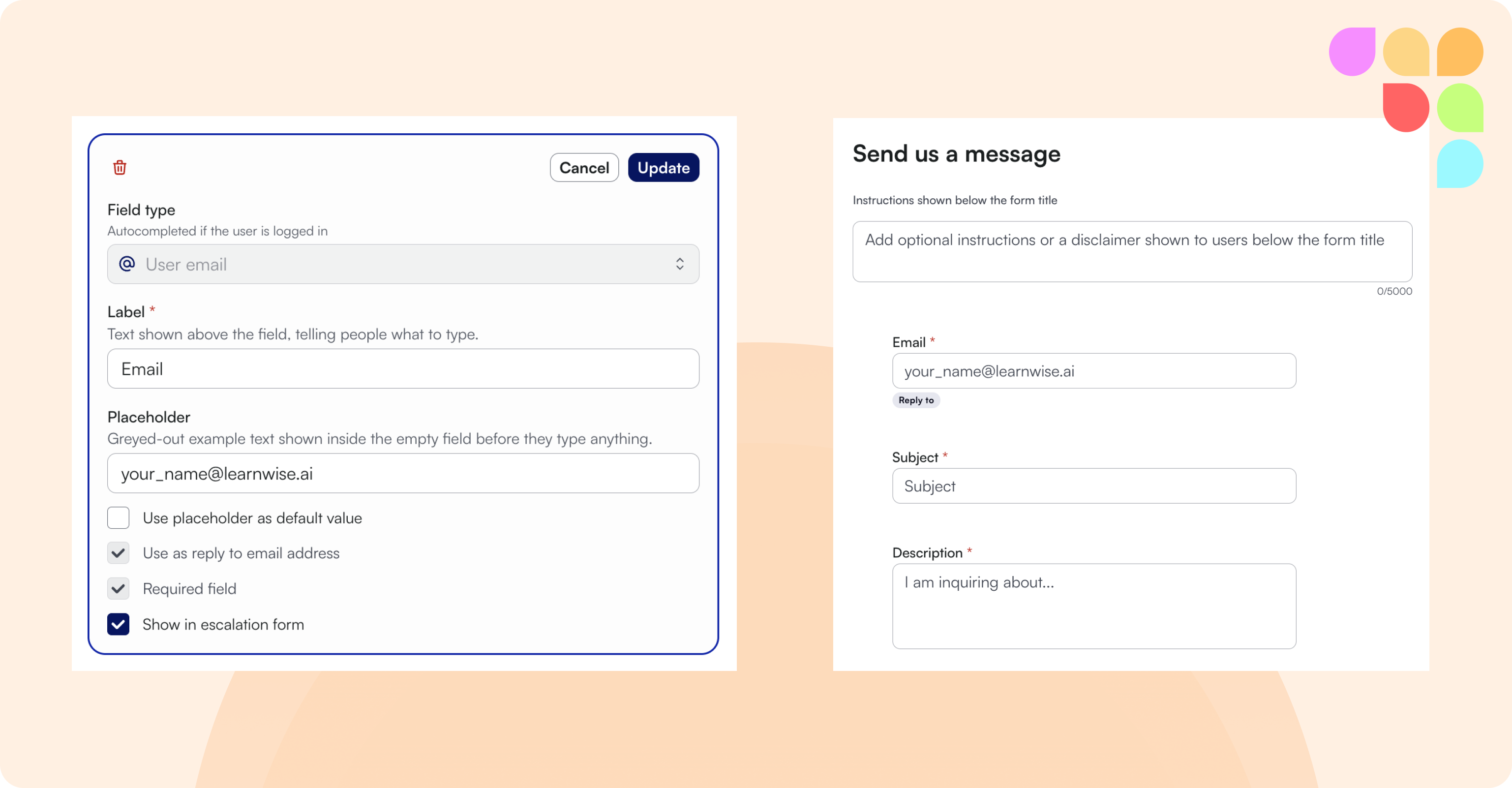
Help desks can now have planned closure periods, such as a holiday break, with a start and end date and an optional label. During a closure, escalation options are automatically shown as unavailable, so there’s no need to switch them off and back on by hand. For ServiceNow, different escalation flows on the same help desk can now create different ticket types (for example an incident for one flow and a case for another), each with its own field mapping.
More Course Content Formats
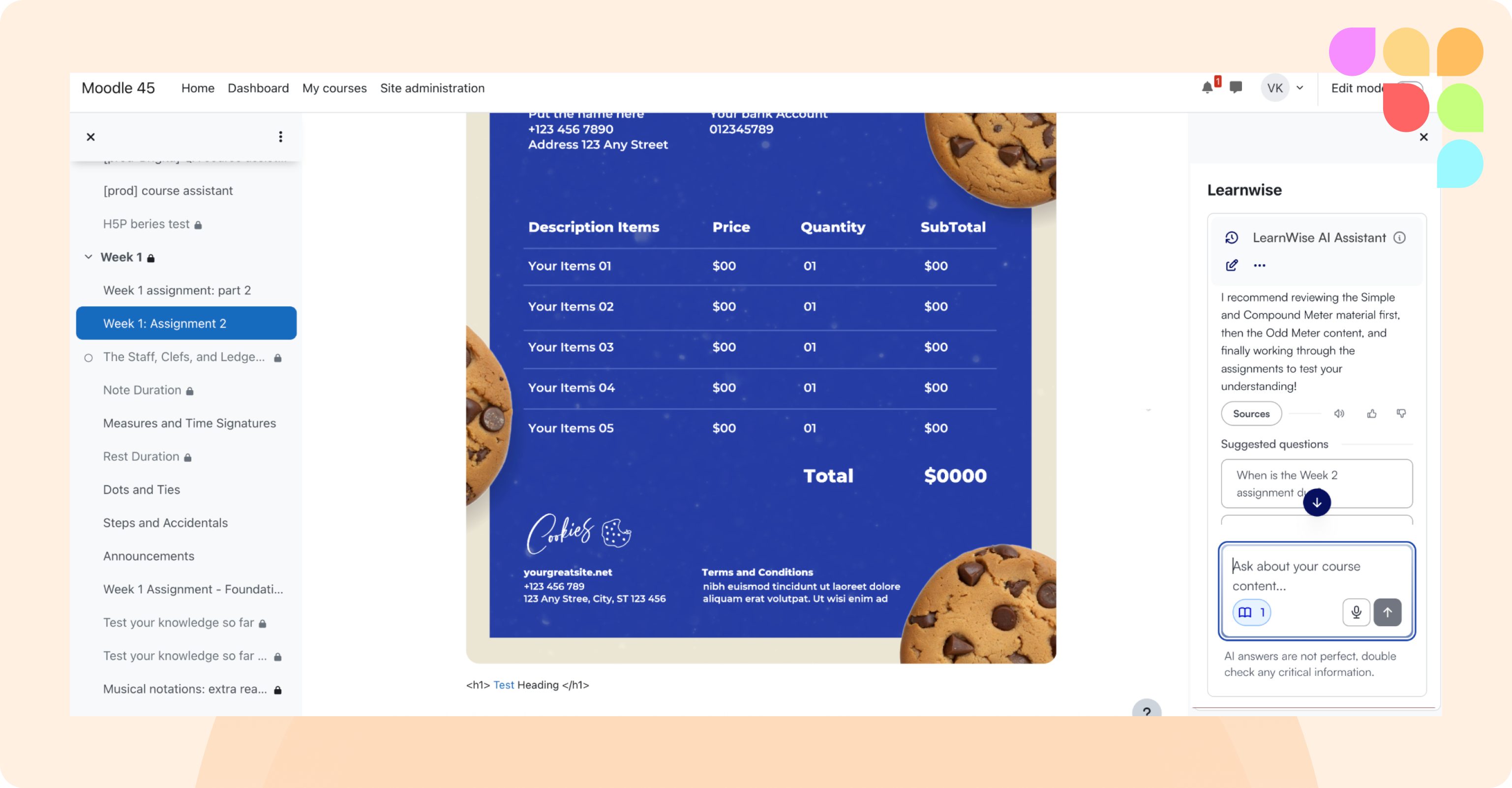
Assistants can now read course content from more e-learning formats, including Articulate Storyline and Adobe Captivate SCORM packages and more Articulate Rise packages. For Brightspace, syllabi published through the Syllabus Tool can now be used as course knowledge.
AI Feedback Updates
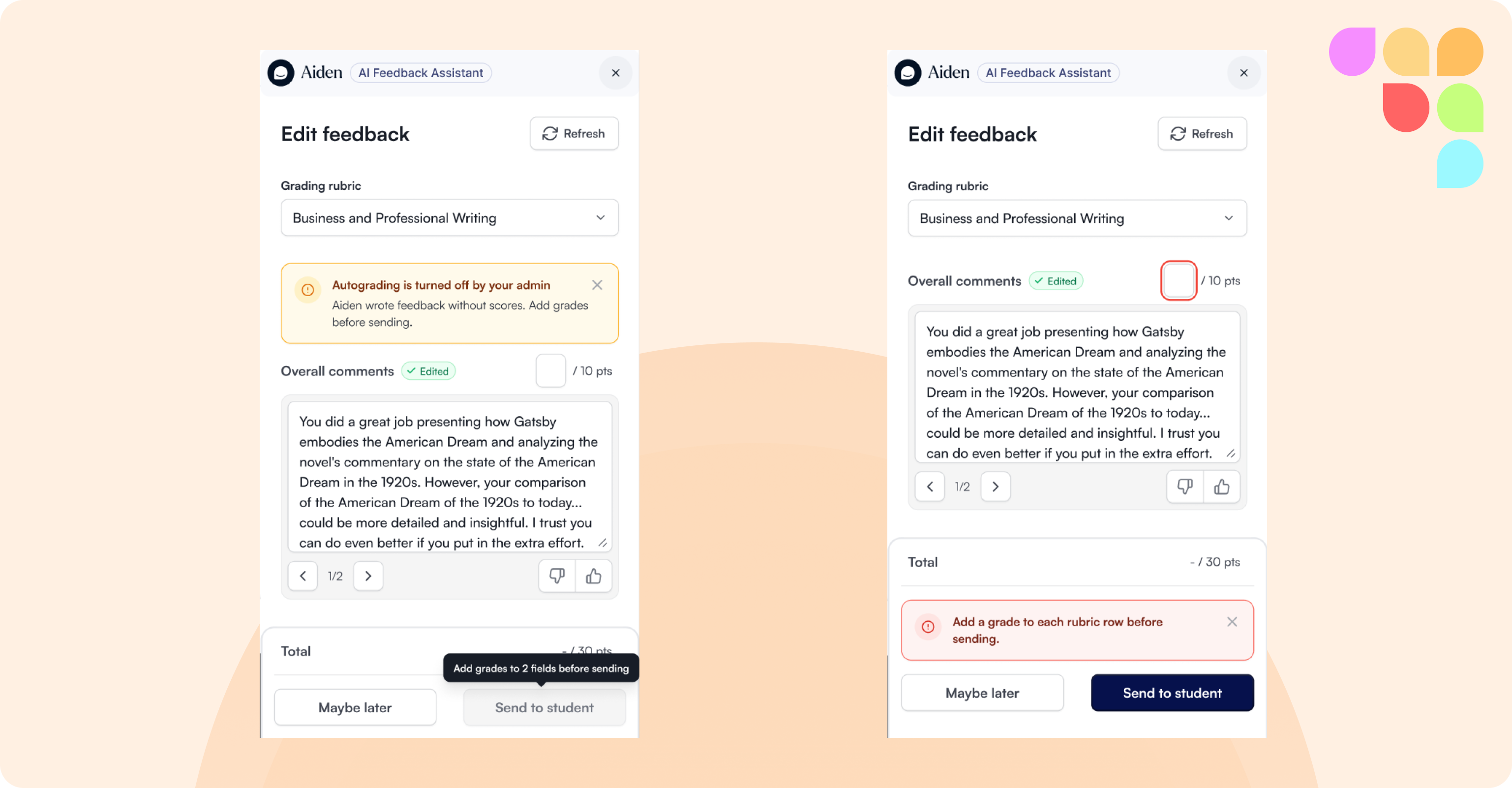
Students can now submit Apple Pages documents for AI Feedback. Admins can also give the feedback launcher button its own icon, either by uploading one or by reusing the chat launcher icon.
Longer Course Answering Style Instructions
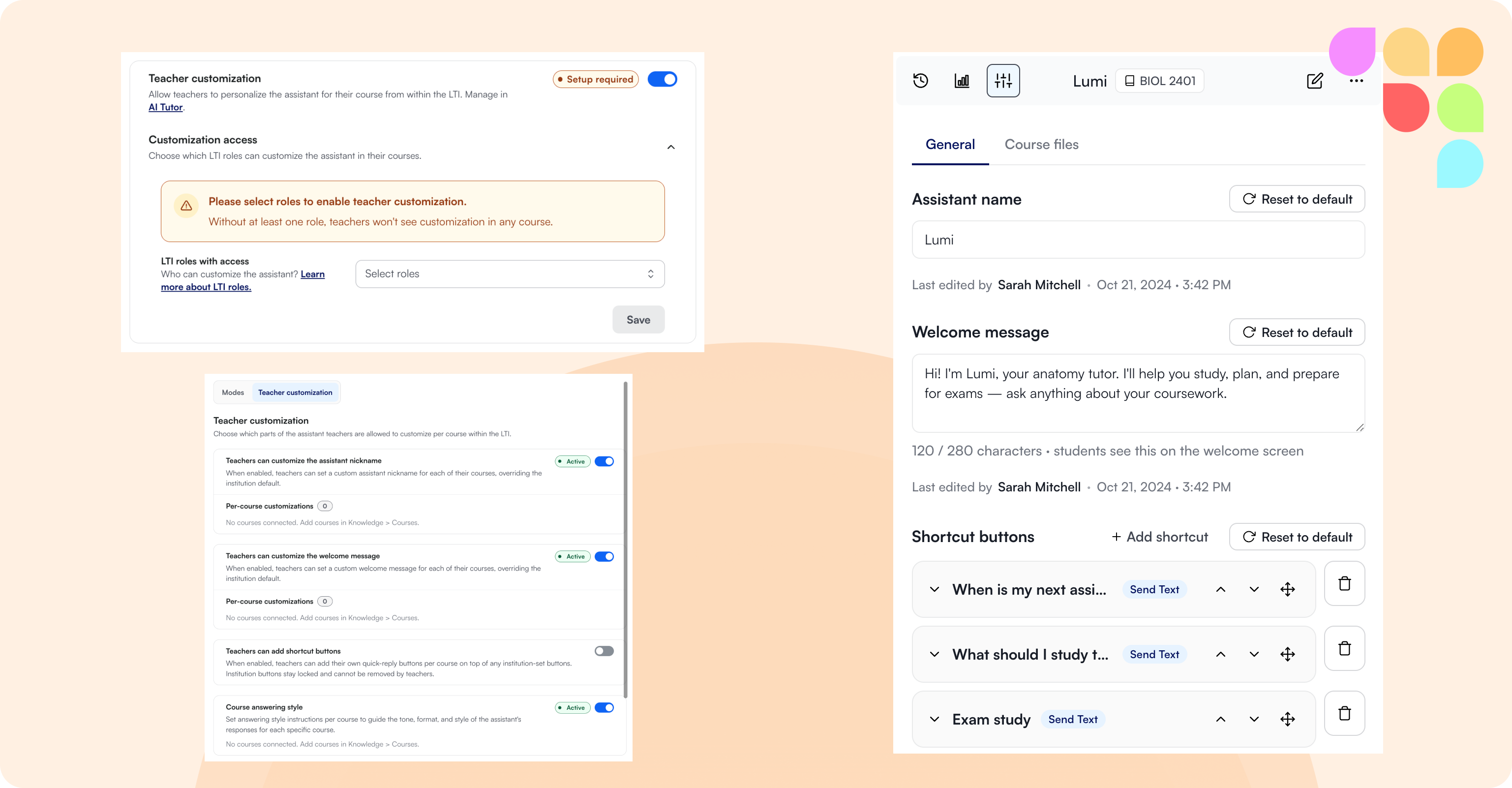
Teachers and admins can now save much longer course-level answering style instructions, so there is room for detailed guidance such as a list of assessment questions the assistant shouldn’t answer.
Conversation Logs and Admin Tables
When a conversation is handed over from one assistant to another, it can now be found from both assistants, so teams that manage the receiving assistant can review the conversations it handled. Tables across the admin panel also now offer more consistent sorting, filtering and column selection.
Accessibility
Screen readers now announce controls in help desks, Improvements and the organization switcher with names that match what is shown on screen, making these areas easier to use with assistive technology.